![Prenda_wordmark_light_high res.png]](https://help.prenda.com/hs-fs/hubfs/Prenda_wordmark_light_high%20res.png?height=40&name=Prenda_wordmark_light_high%20res.png)
IMPORTANT UPDATE: 2026-2027 PEP scholarship applications will open on February 1, 2026. Applications will close on April 30, 2026 and will not re-open until the 2027-2028 school year.
The Personalized Education Program (PEP) is a Florida state scholarship that gives families direct access to their child’s education funds. These funds allow parents to customize their child's learning experience, choosing the best resources, curriculum, and educational environment—including Prenda microschools.
Prenda works with Step Up for Students (SUFS), the scholarship funding organization (SFO) that manages PEP funds. This guide will walk you through the application process, funding details, and how to use PEP funds for your child’s Prenda microschool experience.
In this guide, we’ll walk you through:
- How to apply for the PEP scholarship
- Funding timelines, amounts, and distribution
- How to enroll in a Prenda microschool and use your PEP funds
Applying for PEP funds is a 3 step process:
Step 1: Create an Education Market Assistant (EMA) account
Step 2: Add your students in the EMA portal
Step 3: Apply for the PEP scholarship
Step 4: Accept the PEP Scholarship
Step 5: Submit your Student Learning Plan (SLP)
👉 Key Deadlines:
- Application deadline: April 30, 2026
- Scholarship acceptance deadline: May 31, 2026
Step 1: Create an EMA Account
To apply for PEP, you'll first need to create an account in the Education Market Assistant (EMA).
🔗 Create your EMA account here
- Click “Sign Up” and follow the prompts to verify your identity and set up security questions.
- The primary guardian should be the account holder.
.gif?width=624&height=399&name=Untitled%20design%20(18).gif)
Step 2: Add Your Student(s) in EMA
Before you apply for the PEP scholarship, ALL eligible students must be added to your EMA account.
How to add a student:
1️⃣ Click “Add Student” on your EMA dashboard.
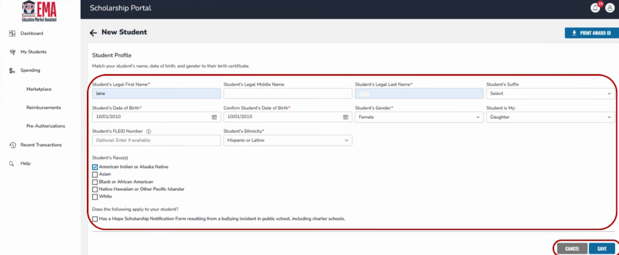
2️⃣ Enter your child’s name, birthdate, and other required details. When you are finished click save.
3️⃣ Repeat this process for each PEP-eligible child in your household.
💡 Note: The Student FLEID number is optional and will not affect your application processing time.
.gif?width=624&height=205&name=Untitled%20design%20(19).gif)
Step 3: Apply for the PEP Scholarship
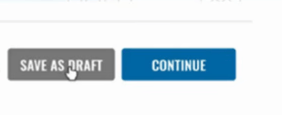
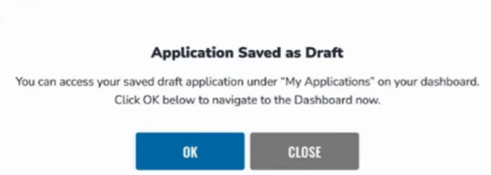
Once all students are added, you can submit your PEP application. If at any point you need to step away from the application simply click the "Save as draft" button and you'll be able to resume the application at a later time.
How to apply:
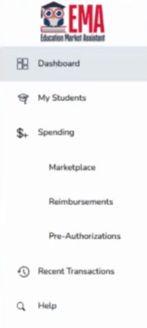
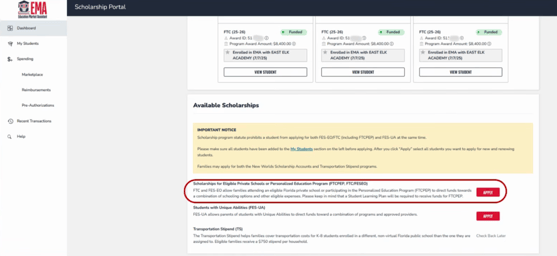
1️⃣ From the left-hand menu, go to your Dashboard.
2️⃣ Scroll down to “Scholarships for Eligible Private Schools or Personalized Education Program (FTCPEP, FTC/ESEO” and click “Apply”.
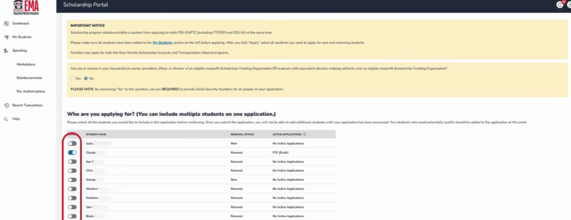
3️⃣ Select the student(s) you’re applying for by turning on the blue toggle next to their name.
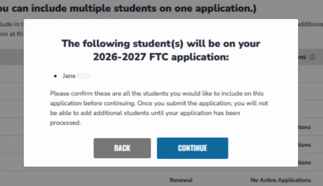
Confirm that you've selected the correct students.
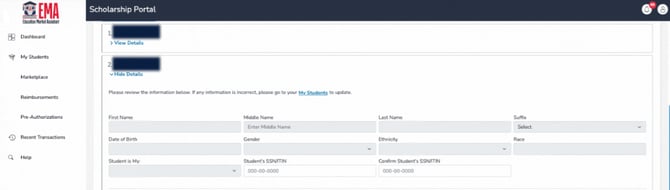
4️⃣ Enter student details under “Student Information.”
-gif.gif?width=670&height=286&name=Untitleddesign9-ezgif-com-crop%20(1)-gif.gif)
You may be asked to upload documentation confirming that you have custody over the student you are applying for.
🚨 Important! In the “Expected School Information” section, select “Florida Home School” in the Type of School dropdown.
- DO NOT select “Florida Private School” or “PEP Hybrid Private School.”
-Feb-05-2026-12-51-29-8356-AM.png?width=670&height=171&name=Untitled%20design%20(1)-Feb-05-2026-12-51-29-8356-AM.png)
🚨 Important! In the “Expected School Information” section, select “YES” when asked "Do you intend to use this scholarship for FTCPEP (Personalized Education Program)?
- This ensures your student qualifies for PEP funding. Applying for the wrong scholarship can jeopardize your child's chances of receiving a scholarship.
-3.png?width=670&height=66&name=Untitled%20design%20(2)-3.png)
5️⃣ Guardian Information & Income Verification
- Income verification is optional. Only opt in if your income is below 400% of the federal poverty level, as this may give your application priority processing.
- If opting in, you must upload proof of income (such as tax documents).
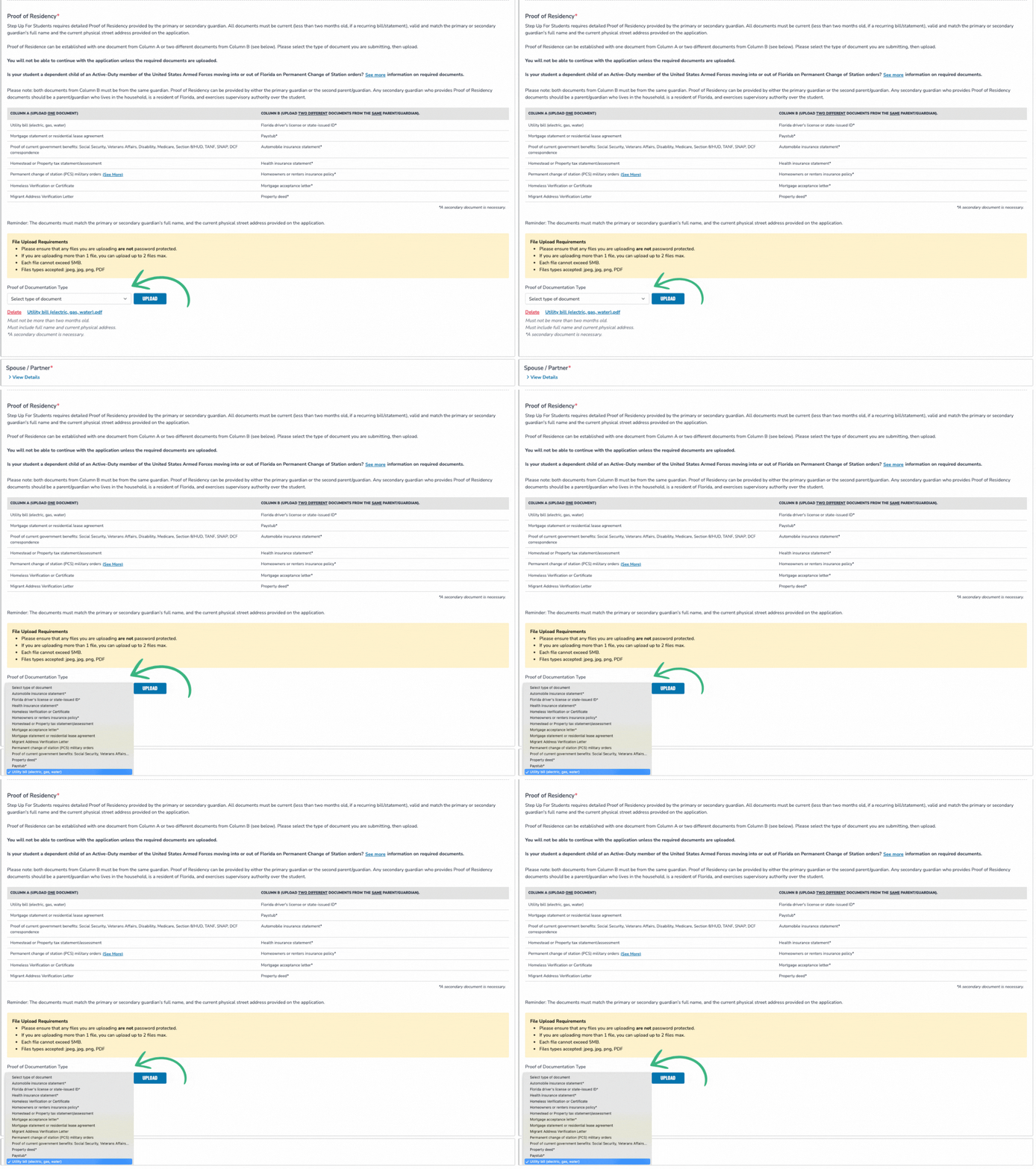
6️⃣ Proof of Residency: Required for all applicants
- Upload two documents that are less than 2 months old
- Must be submitted by the primary or secondary guardian
- Must show the guardian’s full name & address
- Must both be from same guardian
🔗 Additional details about proof of residency documentation
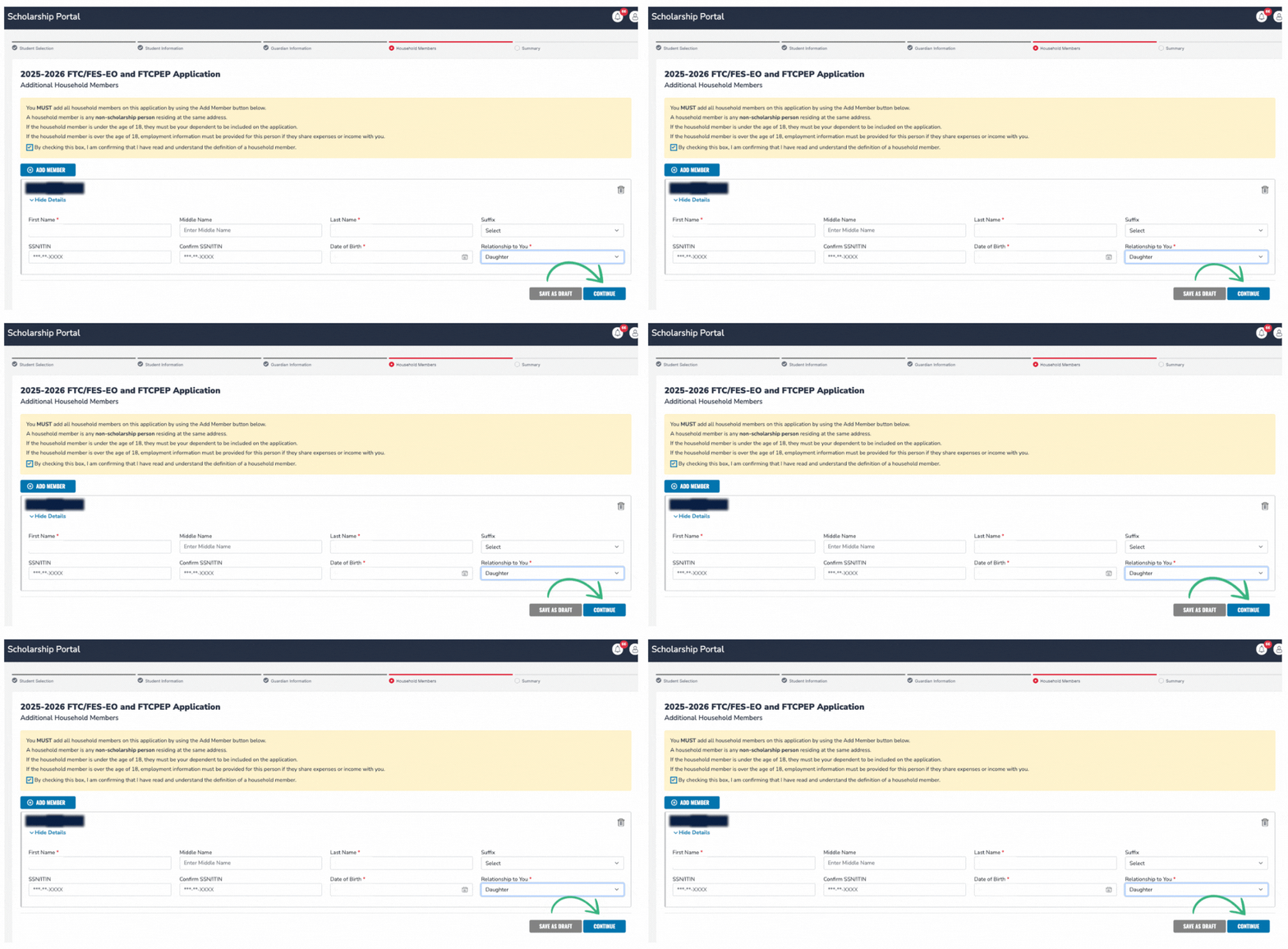
7️⃣ In the Household Members section, list everyone residing in your home (other children under 18 included).
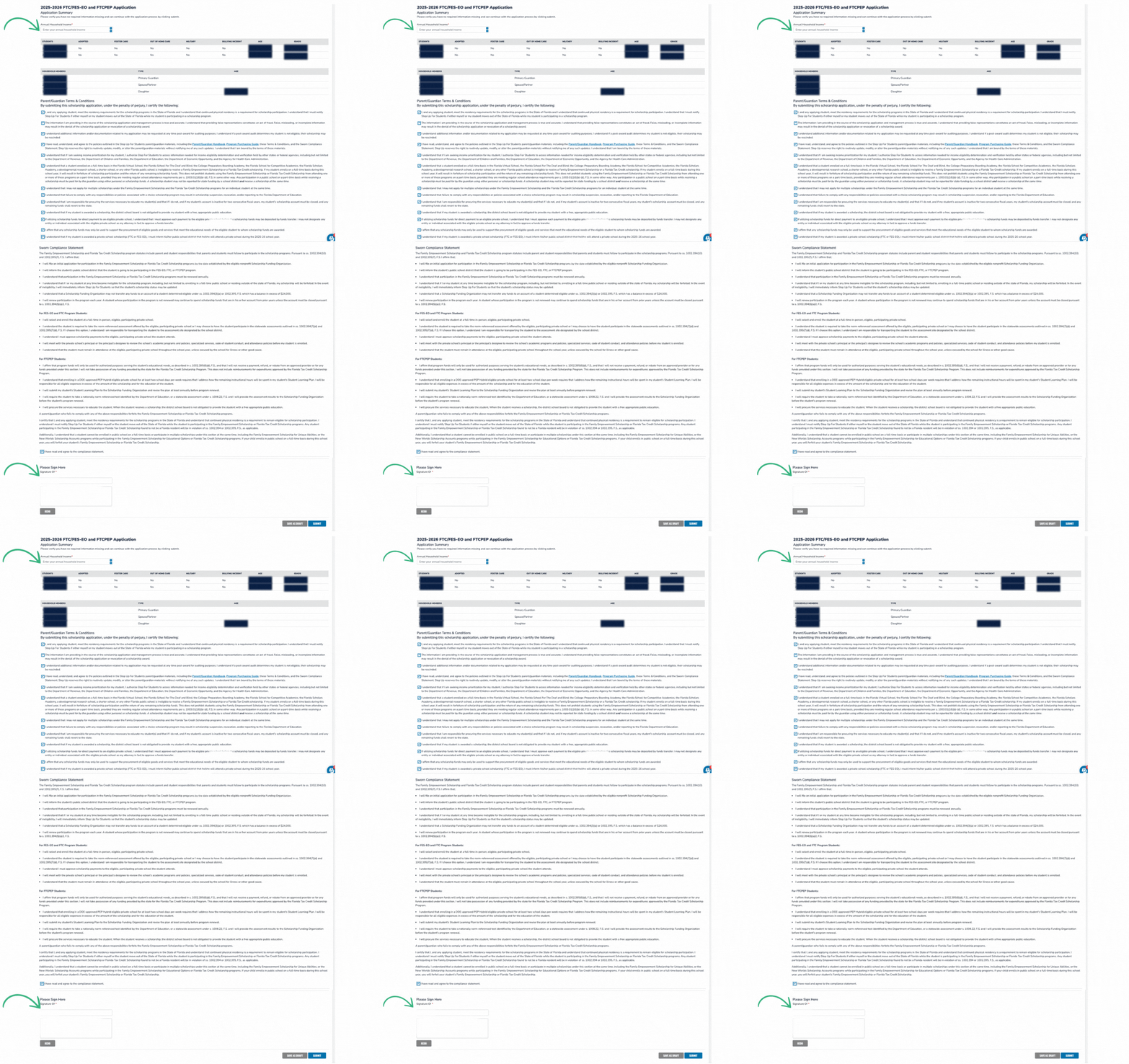
8️⃣ Review your application carefully, enter your annual household income, agree to the terms, electronically sign, and click "submit".
Step 4: Accept Your Student’s Scholarship
Once your application is approved by Step Up for Students, you’ll receive an email with instructions for accepting the scholarship.
-1.png?width=390&height=691&name=Untitled%20design%20(6)-1.png)
How to Accept Your Scholarship
1️⃣ Log in to your EMA account.
2️⃣ Navigate to “Action Items” and find the request to Accept or Decline the scholarship.
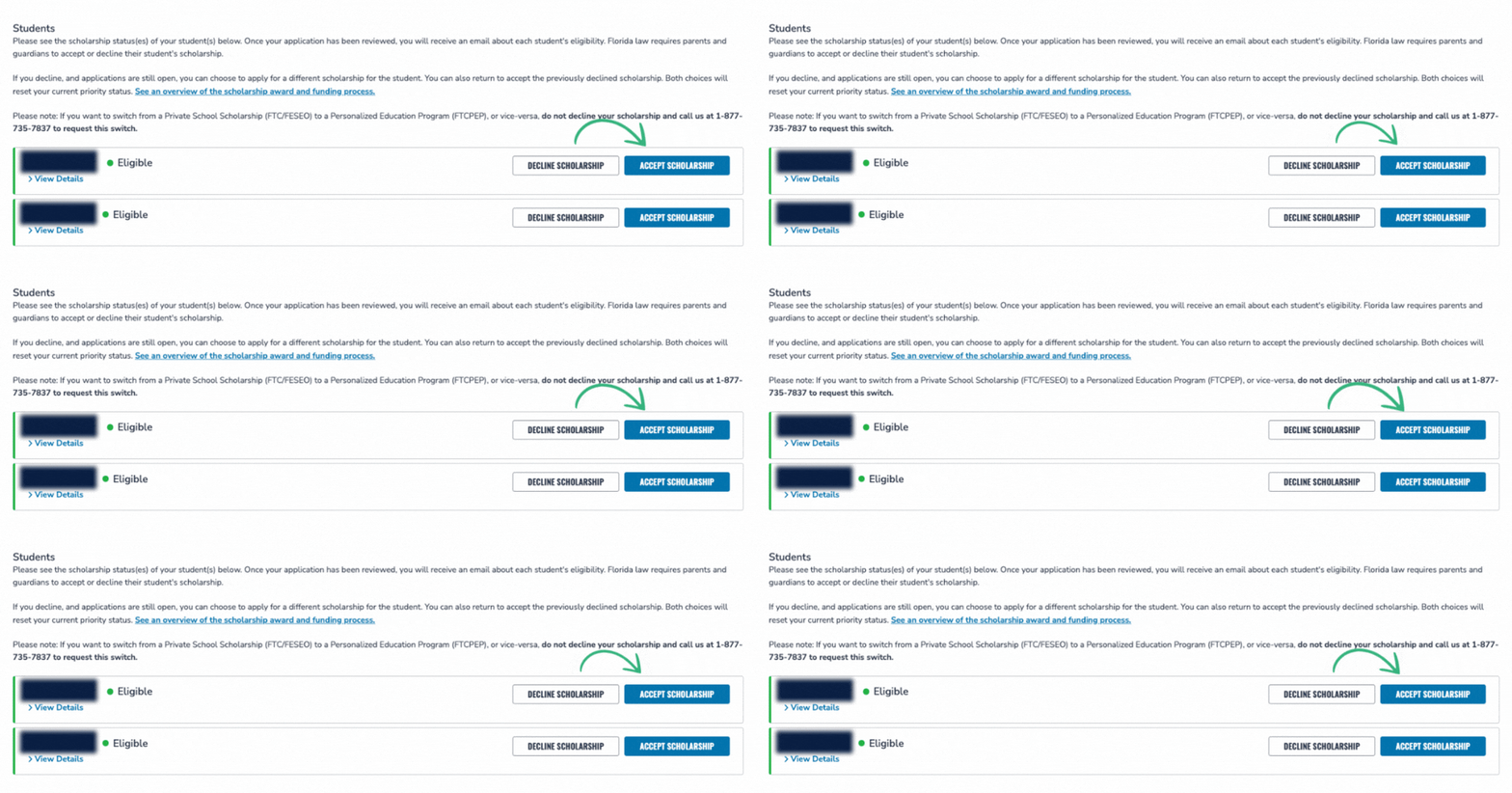
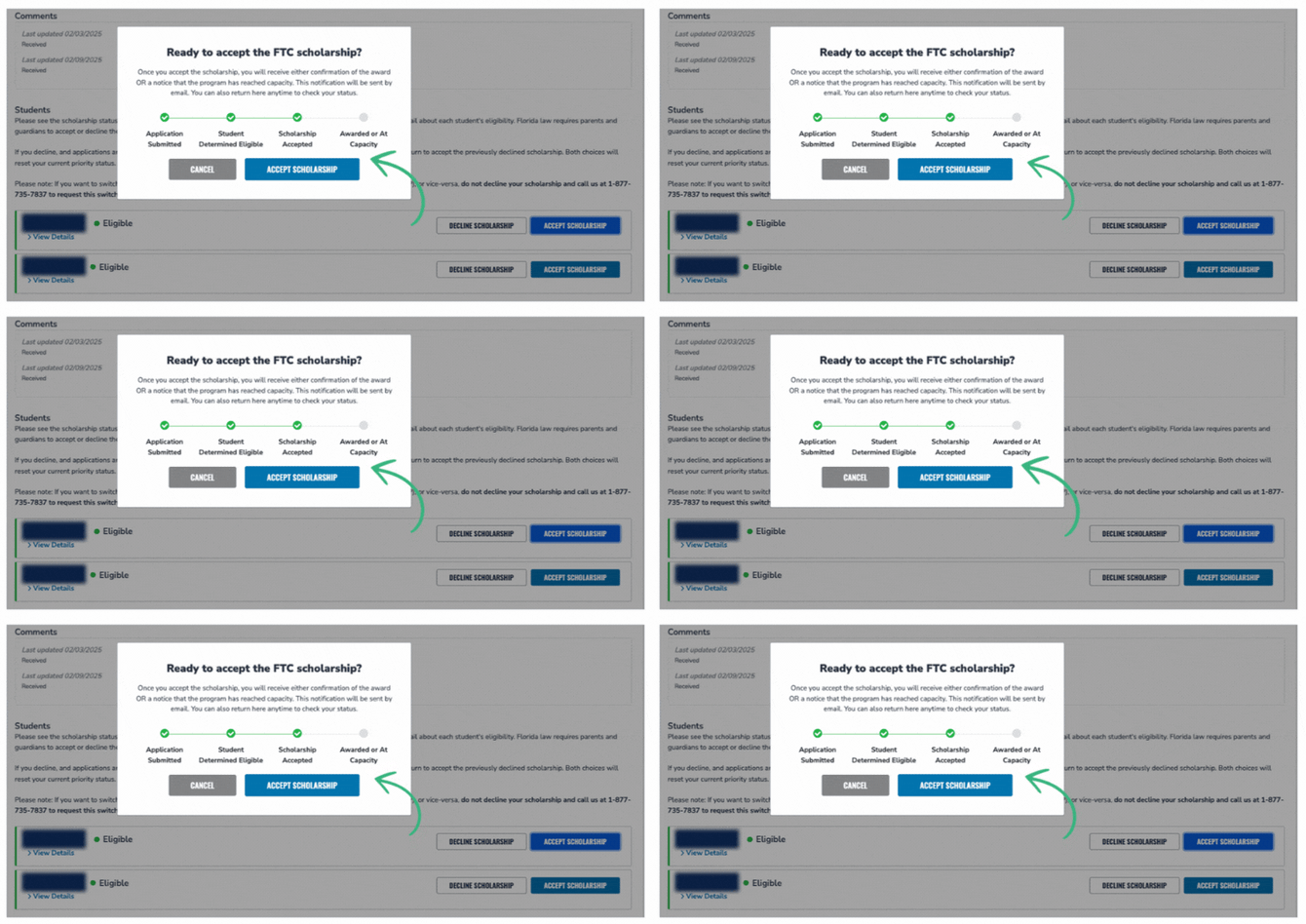
3️⃣ Click "Accept Scholarship" (yes, you’ll need to confirm twice).
Step 5: Submit a Student Learning Plan
Once you've applied and accepted your scholarship, there is one more step you'll need to complete.
How to Complete the Student Learning Plan
1️⃣ Log in to your EMA account.
2️⃣ Navigate to the "My Students" section of your dashboard then select "View Student" for the student whose plan you wish to complete
3️⃣ At the top of your page click on the linked text that reads "Student Learning Plan"

4️⃣ Follow the prompts to complete the SLP for the 2026-2027 school year
📌 Tip: Prenda is a home education instructional program, not a private school—be sure to select “Yes" to participating in the PEP program and "No" to attending a private school. Failure to do so could result in your student losing their PEP scholarship and funding for the 26-27 school year.
-gif.gif?width=670&height=201&name=Untitled%20design%20(3)-gif.gif)
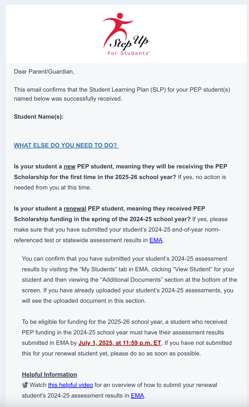
After submitting your student's SLP, you'll receive a confirmation email from Step Up that will include reminders about your student's required assessment results and information about the upcoming school year.
📌 What happens next?
- After submission, your application status will show as “Submitted” on your dashboard when first completed and will then change to "Pending Approval".
- During this stage, all applications display as FTC—this will update to FTC-PEP once awarded.
- If your status ever changes to "On Hold" there are additional requirements needed from you. Review your application to see those next steps.
- Processing takes approximately three weeks. Once you receive the scholarship award, you will have until May 31, 2026 to accept or decline the scholarship in EMA.
📽️ Need extra guidance?
Watch this Step Up For Students video walkthrough:
Funding Timelines, Amounts, and Distribution
PEP Scholarship funds are distributed in these windows:
- Quarter 1: August 15 – September 15
- Quarter 2: November 15 – December 1
- Quarter 3: January 15 – February 1
- Quarter 4: April 15 – May 1
How do I access my funds?
- PEP funds are managed in EMA, which acts as both a holding account and purchasing portal.
- You’ll use EMA to pay for educational services, including Prenda.
How much funding will my student receive?
- The average scholarship amount for 2026-2027 is projected to be ~$8,000
- Scholarship amounts depend on grade level and county.
- The 2025-2026 amounts can be found here, but updated figures for 2026-2027 won’t be available until after state budget approvals.
Enrolling a Child in a Prenda Microschool and Using PEP Funds
Once your PEP application is submitted, reach out to your chosen microschool guide and ask them to invite your child to their microschool if you haven’t already.
You must accept an invite in order to be enrolled in their microschool.
Note: If you are a parent using Prenda’s single family microschool option to homeschool, you should add your child now in your Prenda World account.
Helpful Resources
📖 PEP Parent Handbook
🛍️ PEP Purchasing Guide
💵 2025-2026 Scholarship Award Amounts
Got questions? We’re here to help! Contact Prenda Support for assistance.